
If you do not have access to Adobe Acrobat Pro through your CUNY Login, you can still add a signature to PDF files with these free alternatives.
Google Chrome (Draw Tool)
Chrome’s PDF viewer includes a basic draw tool you can use to sketch a signature on a PDF file, then save the signed PDF.
- Open a PDF in Chrome (drag and drop into a tab, or right-click → Open With → Chrome)
- Click the Draw tool (pencil/scribble icon) in the top toolbar

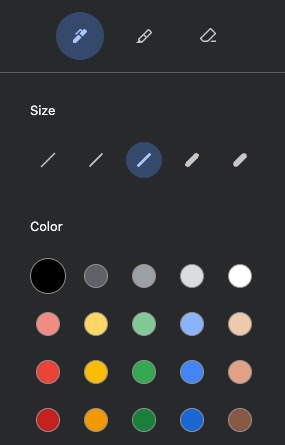
- In the right-side panel, select Pen and adjust the line thickness and color
- Use your mouse, trackpad, touchscreen, or stylus to draw your signature
- If you make a mistake, select the Eraser tool to remove and retry
- Click Download to save the signed PDF
Firefox
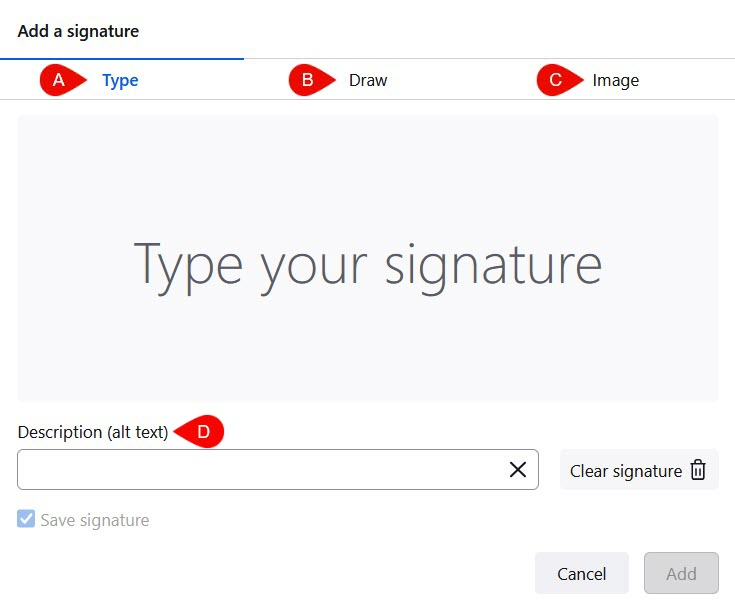
Firefox has the most fully-featured built-in PDF signature tool of any browser. Open any PDF in Firefox and click the Add Signature button in the top toolbar. You can:
- Type your name (rendered in a handwriting-style font)
- Draw your signature with mouse, trackpad, or touchscreen
- Upload an image of your handwritten signature
You can save your signature for reuse across documents. Note that these are visual annotations, not cryptographically verified digital signatures.
Learn more about the Firefox PDF viewer
Microsoft Edge (Draw Tool)
Edge doesn’t have a dedicated signature feature, but you can use the Draw tool to add a signature:
- Open a PDF in Edge
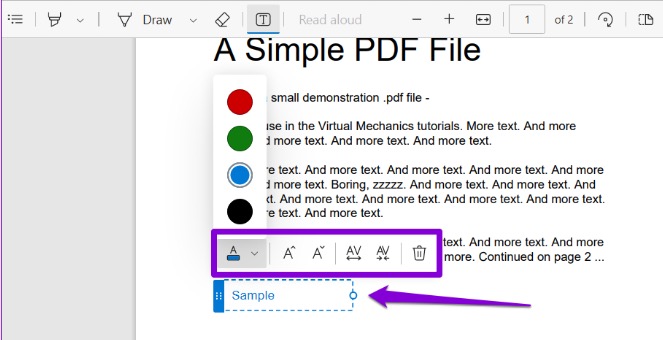
- Click Draw in the top toolbar
- Adjust color and thickness
- Draw your signature with mouse or touchscreen
- Save with Ctrl+S
Adobe Acrobat Online (Free Tier)
Adobe offers a free browser-based “Fill & Sign” tool. You can type, draw, or upload a signature image. Requires an Adobe account to download the signed file.
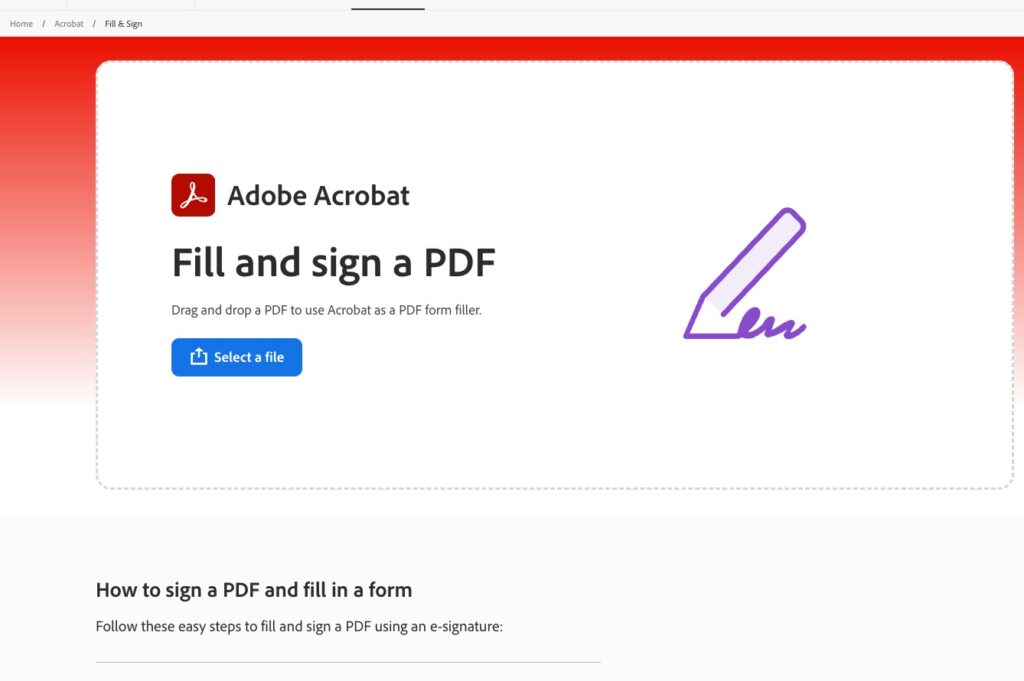
Learn more about Adobe Acrobat Fill & Sign
Free Desktop Options
MacOS Preview (Built-In, No Installation Needed)
If you’re using a Mac, you can use the built-in Preview app (the default PDF viewer, accessible via Finder). It offers a full-featured signature workflow with multiple creation methods:

- Open any PDF in Preview (double-click it in Finder, or right-click → Open With → Preview)
- Click the Markup toolbar button (pen tip icon) if it’s not already showing
- Click the Sign button (fountain pen icon)
- Choose Create Signature, then pick one of three methods:
- Trackpad: Draw your signature with your finger directly on the trackpad. On a Force Touch trackpad, pressing harder creates thicker lines.
- Camera: Sign your name on white paper with a dark pen, then hold it up to your Mac’s built-in camera. Preview captures and digitizes it automatically.
- iPhone/iPad: If a nearby device is signed into the same Apple ID, you can draw your signature with your finger or Apple Pencil on the device’s screen.
- Click Done to save the signature
- Click the saved signature to place it on the PDF, then drag to position and resize
- Go to File → Save (or Export as PDF to keep the original intact)
Preview saves your signatures for reuse across all documents and syncs them via iCloud to your other Macs. You can store multiple signatures (e.g., full name, initials, spouse’s signature). Note that these are visual annotations, not cryptographically verified digital signatures.
Adobe Acrobat Reader (Free)
The free version of Acrobat Reader includes “Fill & Sign” functionality. You can create and save signatures (typed, drawn, or image-based) and place them on any PDF. This is the most widely used free option and also supports certificate-based digital signatures if you have a digital ID.
Learn more about Adobe Acrobat Reader
LibreOffice Draw
LibreOffice can open PDFs for editing. You can insert an image of your signature and export back to PDF. It’s free and open source.
Learn more about LibreOffice Draw