
Step-by-Step Guide
Reminder – Your schedule goes directly into the Section Dashboard. Once your schedule is set you let the Deans know for approval. Once the Dean approves, you can submit to scheduling for proofing. Once the shopping carts are open for students, section dashboard will lock. All your requests will then be put through the workflow in Course Dog under the Request tab.
Purpose of This Guide
This guide provides step by step instructions for creating, submitting, and tracking Section Change requests in Coursedog. It is intended for Brooklyn College department schedulers/chairpersons who are already familiar with the Section Dashboard. Rather than teaching the Section Dashboard itself, this guide focuses on the additional steps required when using the Requests workflow.
Topics covered include:
• Creating requests
• Selecting request types
• Editing sections
• Canceling sections
• Reviewing requests before submission
• Tracking workflow
• Viewing request history.
Step 1: Open the Requests Page
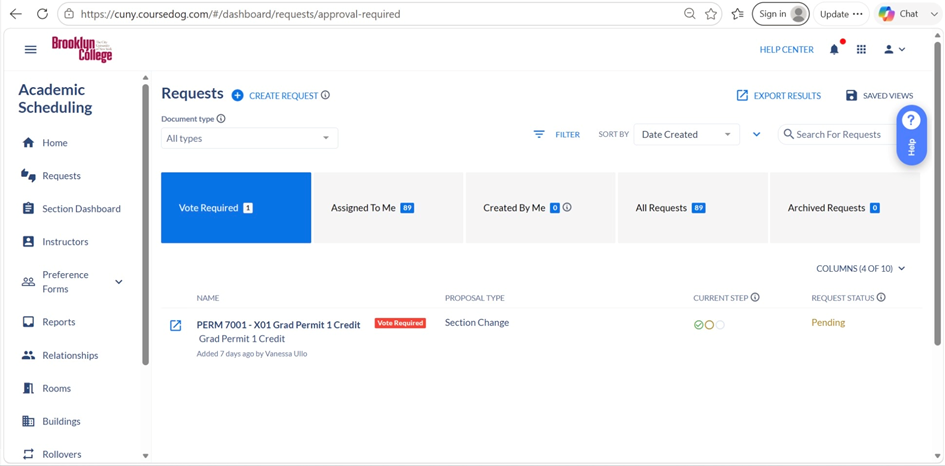
The Requests page is the starting point for every Section Change request. From here you can create new requests, filter existing requests, customize displayed columns, and review requests already in progress. Select Requests from the left navigation menu, then click Create Request to begin.
Step 2: Create a Request
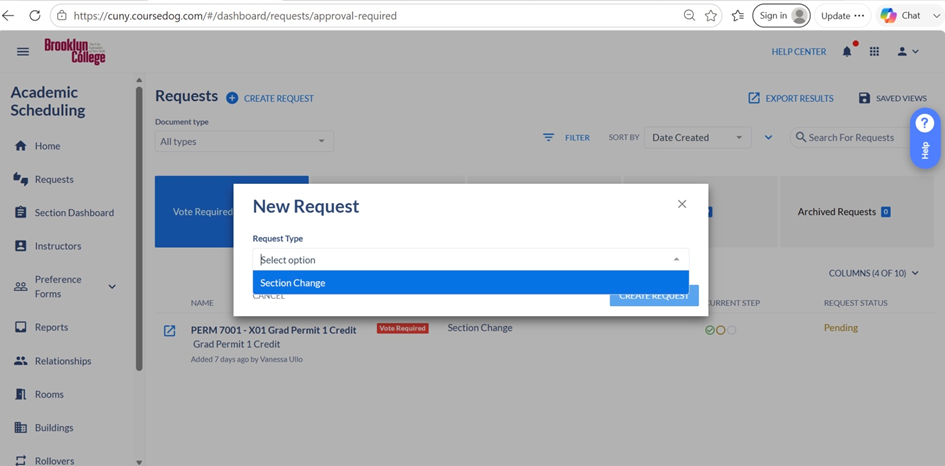
Click Create Request. Brooklyn College currently uses a single request type, Section Change, for all scheduling modifications. Select Section Change and continue.
Step 3: Select the Term
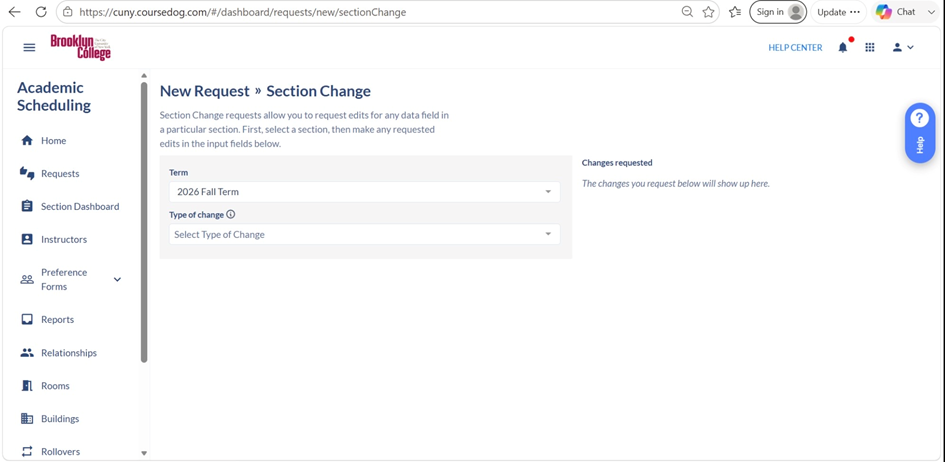
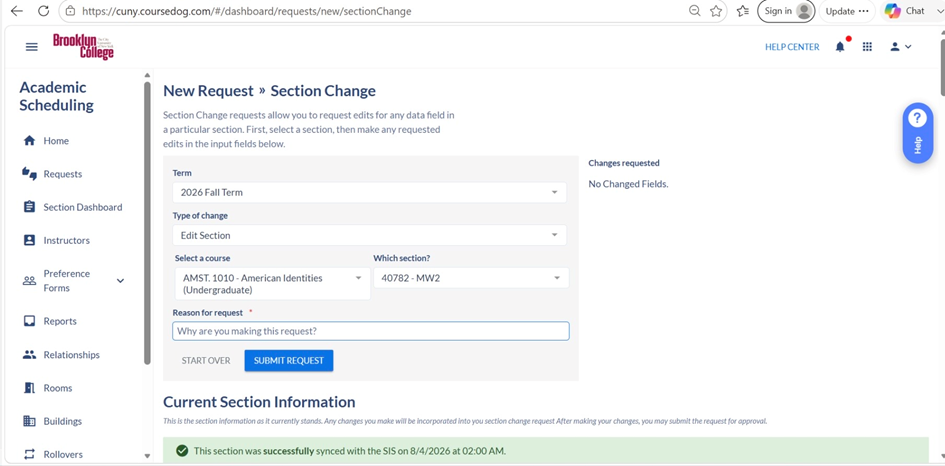
Choose the academic term you wish to modify, then choose the appropriate Type of Change. The remainder of the workflow depends on the option selected.
Step 4: Choose a Request Type
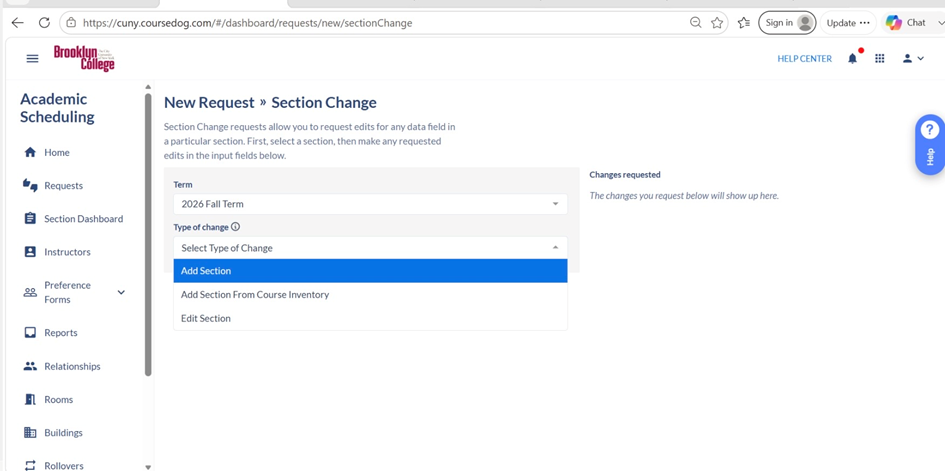
Add Section creates another section of an existing scheduled course. Add Section from Course Inventory schedules a course that exists in the inventory but is not currently offered. Edit Section is used for instructor changes, meeting patterns, enrollment caps, modality updates, room changes, and section cancellations.
Step 5: Locate Your Course
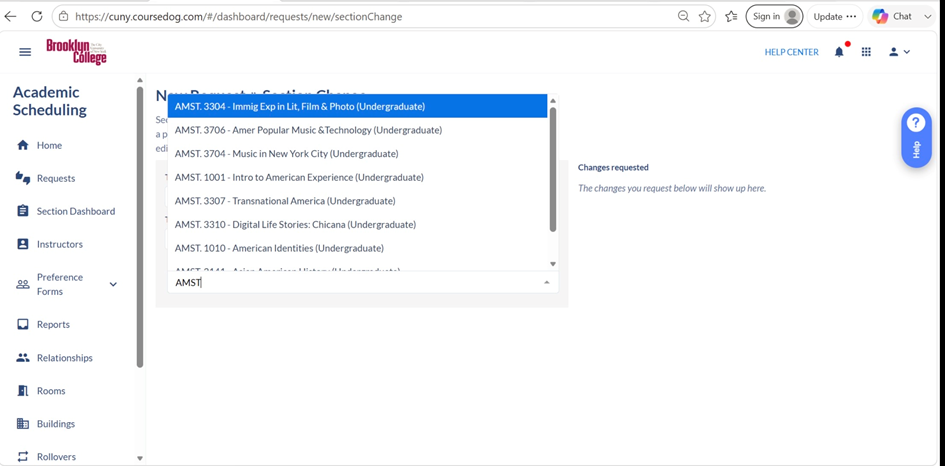
Type the course subject or course number. Matching scheduled courses appear automatically. Select the correct course, then choose the course you wish to modify.
Step 6: Enter a Reason for Request
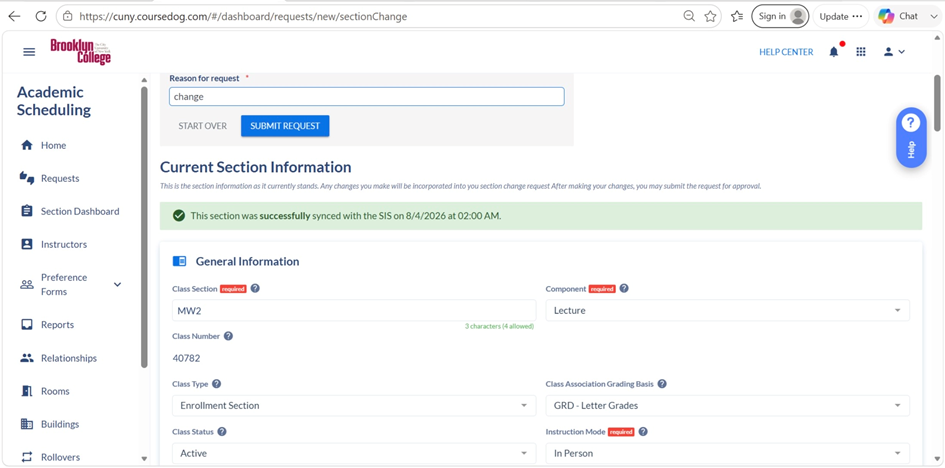
Enter a brief reason describing why the request is being submitted. This field is primarily used for reporting purposes. Once entered, the familiar Section Dashboard interface loads.
Step 7: Make Your Changes
The Current Section Information page is the same interface departments already use in Section Dashboard. Update only the fields that require modification.
Step 8: Canceling a Section
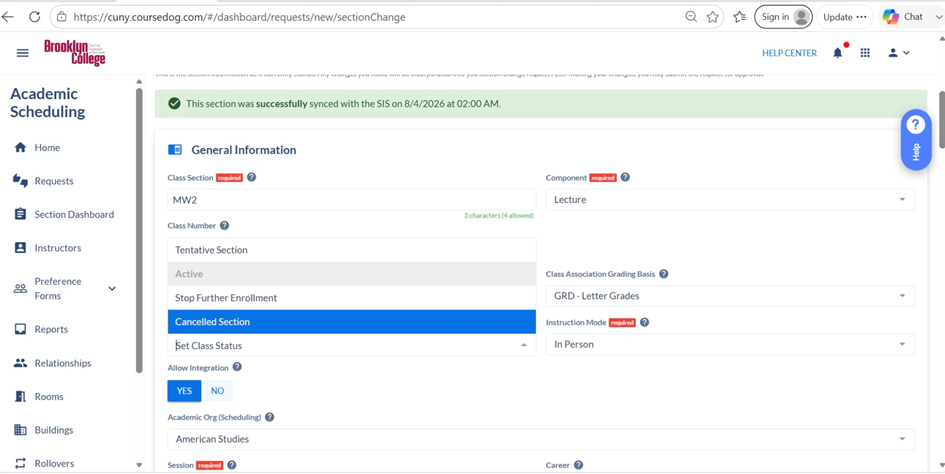
Change Class Status from Active to Canceled Section and select the appropriate Reason for Cancellation.
If students are enrolled, scroll to Enrollment Settings and change Cancel if Student Enrolled from No to Yes.
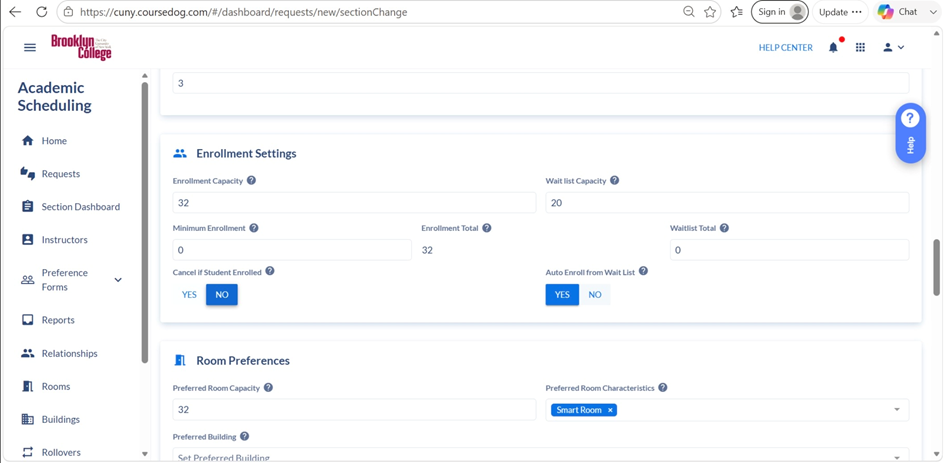
Important: Both steps are required when students are enrolled.
Step 9: Review Before Submitting
Review the Changes Requested panel before submitting. Only modifications shown in this panel will be submitted for approval.
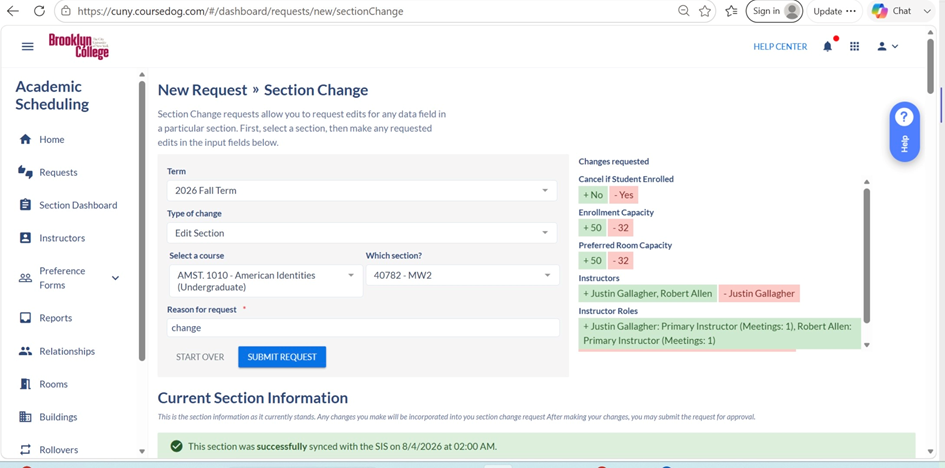
Step 10: After Submission
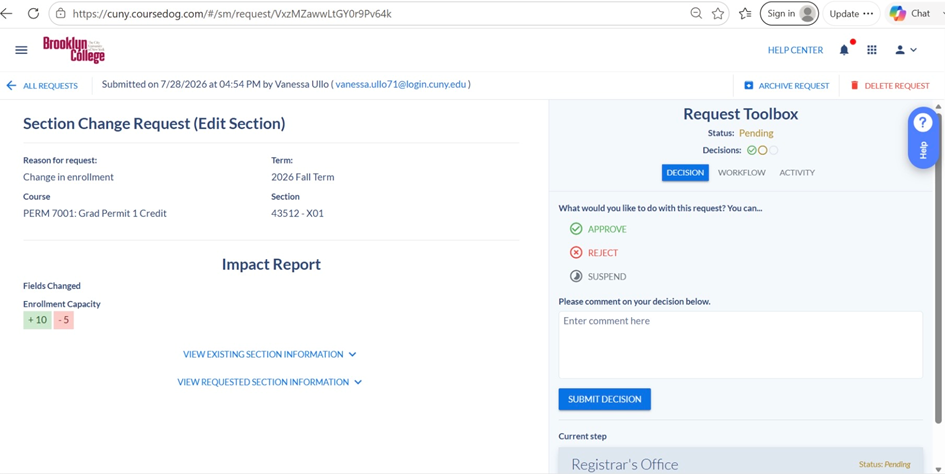
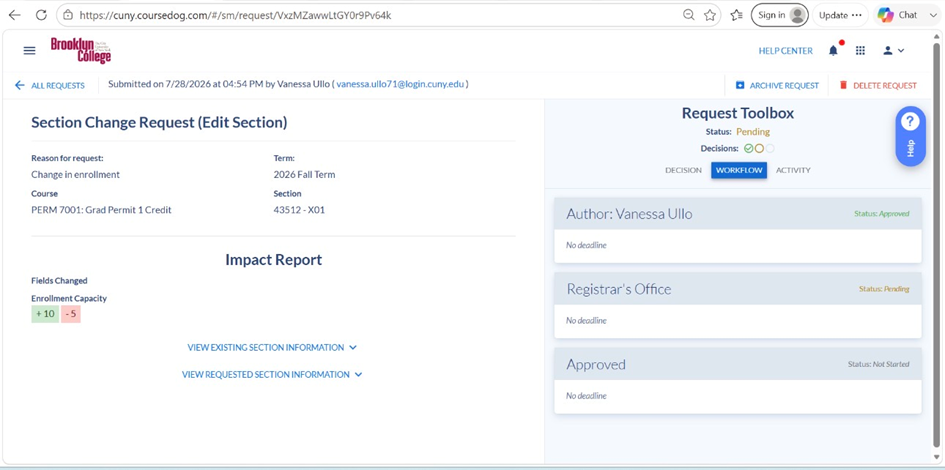
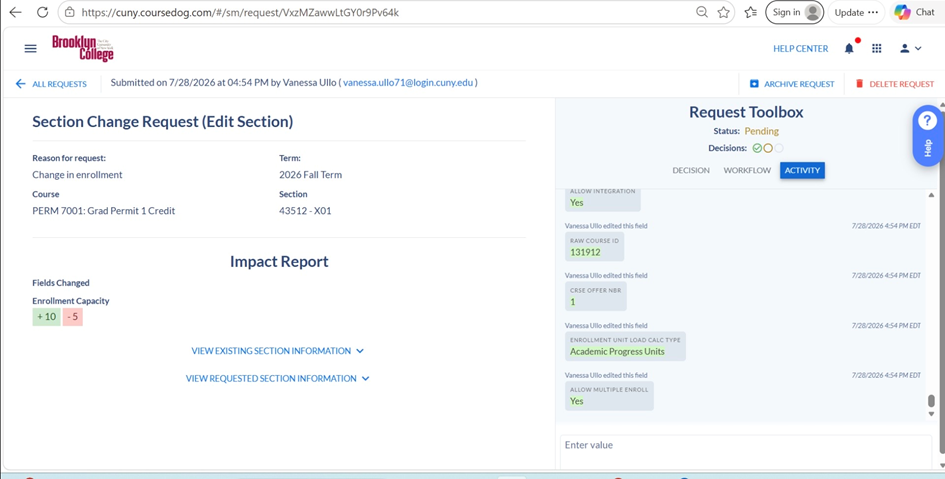
Approvers may Approve, Reject, or Suspend a request. Use the Workflow tab to track the approval path and the Activity tab to review the complete audit history.
Common Questions & Important Reminders
When should I use a Section Change request?
Use the Section Change workflow for most scheduling modifications, including instructor changes, meeting day and time changes, enrollment cap updates, modality changes, section cancellations, and adding sections.
A low enrolled course is changing to an Independent Study (IS) section. Should I submit a request?
No.
Requests to convert a low enrolled course to an Independent Study (IS) section should not be submitted through the Requests workflow. Instead, complete the required Independent Study form and follow the standard departmental process. Please email Scheduling@brooklyn.cuny.edu for the form.
How do I submit a new instructor?
You can not submit a new instructor through the request until they are officially in the system.
Send an email to scheduling@brooklyn.cuny.edu with the instructors empl ID and correct name. We will enter them in CUNY First and then once they are entered, they will appear in the requests system after 24 hours. That is when you can go in and enter the professor.
How do I submit a room assignment?
All room assignments for special sections should be submitted in email when the final draft of the schedule is submitted to Scheduling.
Scheduling assigns all smart rooms. To change this, you would need to do it through the room change request process once a room is assigned and the queue is opened.
My changes aren’t appearing in the Changes Requested panel.
Only changes displayed in the Changes Requested panel will be submitted. If a change is missing, return to the section, make the change again, and confirm it appears in the summary before submitting.
I can’t cancel a section with enrolled students.
Be sure you have completed both required steps:
• Change Class Status to Canceled Section.
• Change ‘Cancel if Student Enrolled’ from No to Yes under Enrollment Settings.
How can I track my request?
Use the Workflow tab to see where your request is currently waiting for approval. The Activity tab provides a complete history of who made changes and when.
Before You Submit
- Selected the correct term
- Selected the correct course and section
- Entered a Reason for Request
- Verified all intended changes appear in the Changes Requested panel
- Confirmed the request is ready for submission
Can I change the days, meeting times, or bell code of a section with students already enrolled?
No.
When students are already enrolled, certain schedule changes, including changes to meeting days, meeting times, or the bell code, cannot be processed using an Edit Section request. Instead, the existing section must be canceled and a new section must be created with the updated schedule information.
If you are unsure whether your requested change requires a cancellation and a new section, contact scheduling@brooklyn.cuny.edu before submitting your request.