
All CUNY students belong to the same Microsoft 365 organization as faculty and staff. This means you can add students directly to a Team without workarounds or guest accounts. If you’re new to Teams, review Getting Started with Teams.
Students can access Teams using the Teams desktop and mobile apps and via the web at teams.microsoft.com.
How to Add a Student to a Team
- Open Microsoft Teams and navigate to the Team you’d like to add students to.
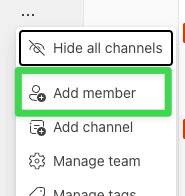
- Click the three-dot menu (⋯) next to the Team name and select Add member.
- Search for the student by CUNY Login username (firstname.lastname##).
- Select the student from the directory results and click Add.
- The student will appear as a member and immediately gain access to the Team’s channels, files, and conversations.
How to Add a Student to a Teams Chat Group
- Open Microsoft Teams and navigate to the Chat option.
- Click the New Message icon.

- In the To: section, search for students by their CUNY Login username (firstname.lastname##).

- Select the student from the directory results.
- The student will appear in the Chat and you can continue adding other students.
Questions?
If you have questions about adding students to your Teams or need help getting set up, reach out to the ITS Help Desk.