
Creating an Amazon Order in CUNYBuy
Preparing Your CUNYBuy Session
Before navigating to Amazon, you must establish a clean session in CUNYBuy to prevent routing errors.
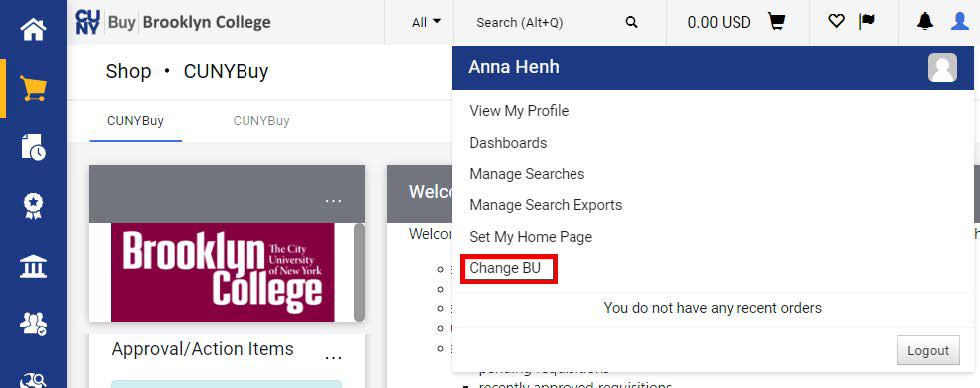
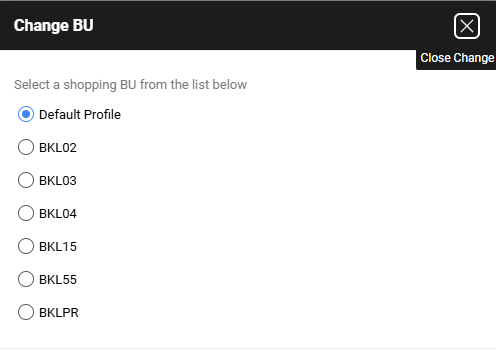
Verify Your Business Unit (BU): Ensure your homepage displays the correct Business Unit. If it does not, change it before proceeding with any other tasks. You can change your BU by clicking the User icon in the top right corner and selecting Change BU.
Clear Your Cart: You must always start with an empty (and NEW) cart (0.00 USD). Navigate to Orders > View Carts > Create Cart to establish a new session.
The Amazon Punchout & Shopping
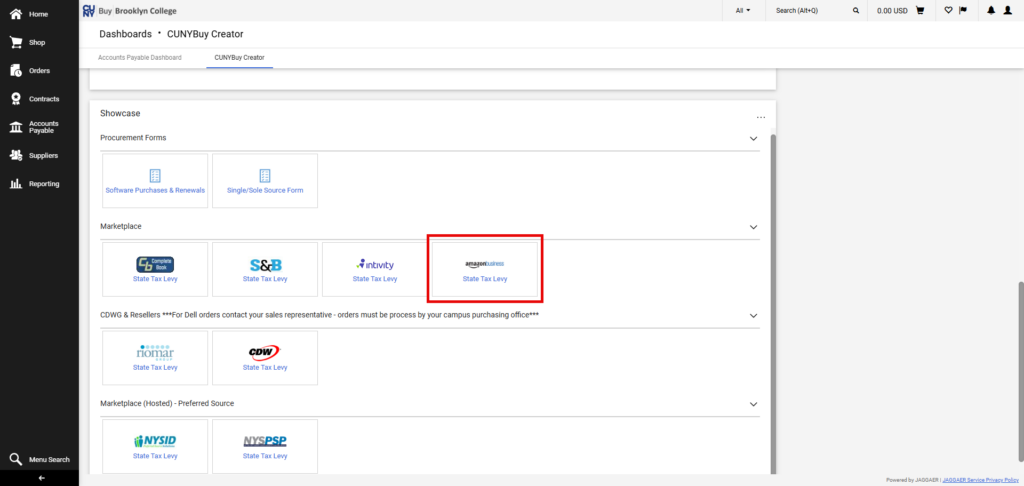
Access the Supplier: Scroll down to the Marketplace section of the page and click on the Amazon supplier tile. This will open Amazon in a secure iframe window.
Add Items to Cart: Follow the website navigation to add the needed items to your cart. Prohibited items (e.g., appliances, microwaves, alcohol, gift cards) must not be purchased.
Review the Shopping Cart: Ensure that the items and quantities are correct. Warning: This is your last opportunity to review. Unlike other suppliers, you CANNOT modify the contents of your cart (changing quantities, adding/removing lines) once it is returned to CUNYBuy. Doing so breaks the checkout agreement and voids your locked pricing. If changes are needed, you must delete the cart entirely and start a new punchout session.
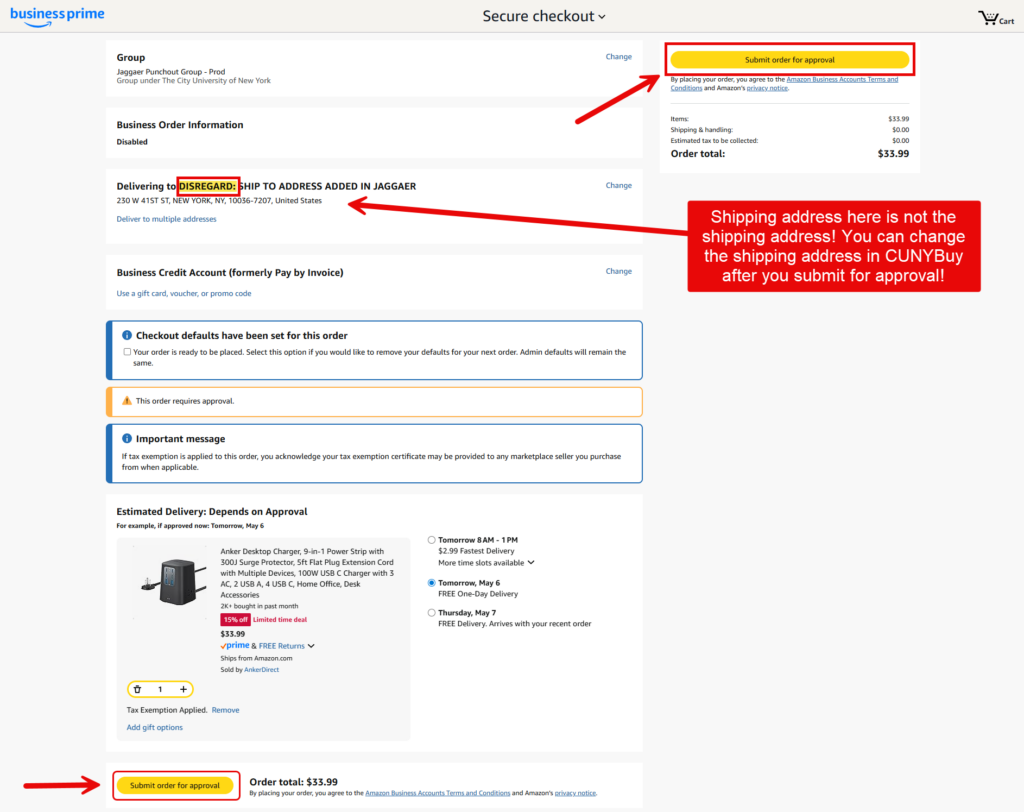
Submit for Approval: When you have completed shopping, click to proceed to checkout. The delivery address shown in the Amazon checkout is merely a placeholder to engage your 14-day price lock. Click Submit for Approval. You will be returned to the Shopping Cart page in CUNYBuy.
Finalizing in CUNYBuy
Proceed to Requisition: Click the Proceed to Checkout button to continue creating the requisition. You will be taken to the Requisition Summary page.
Resolve Draft Issues: On the right side of the Requisition page is the Summary section listing any issues that need to be addressed. Click the links in the Draft box to resolve required fields like Justification, Shipping, and Billing.
Update Shipping Details: Click the Edit pencil icon next to the Shipping section. You must enter the specific Building, Room, and Floor number to ensure Amazon packages are delivered to your exact location, not just a general campus loading dock. Click the Save button.
Update Billing Details (if applicable): Click the Edit pencil icon next to the Bill to section. Select the applicable option(s) and click the Save button.
Enter Accounting Codes: Enter the Chartfields for this transaction. For multiple line requisitions requiring different funding sources, apply the master code in the main Accounting Codes section, then scroll to the Line Items section. Click the Line Item Actions ellipses icon, and select Chartfield(s) from the dropdown to override individual items.
Submit Request: Once you have finished entering all relevant information, click the Submit Request button on the top-right of the page to finalize your requisition and submit it into workflow for approval.
Returns & Order Tracking
While all purchasing must be done through the CUNYBuy punchout, post-order actions like tracking and returns offer a bit more flexibility.
You have two options for initiating a return or viewing order tracking:
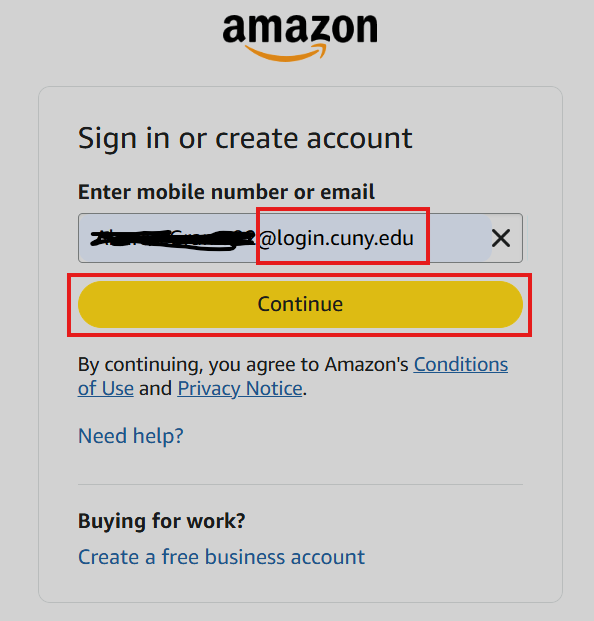
Via Amazon.com Directly: You can bypass CUNYBuy and log directly into Amazon.com. Note: You must log in using your official login.cuny.edu email address (your CUNYFirst login), as that is the address tied to your CUNY Amazon Business profile.
Via the Punchout: You can punch out to Amazon through CUNYBuy just as you would to place an order, and navigate to the Returns module.
Post-Submission Rules & Reminders
- The 14-Day Rule: Amazon pricing is volatile. Once your cart is returned to CUNYBuy, your requisition must receive all approvals and generate a PO within 14 calendar days to honor the locked price. Monitor your requisition’s workflow to avoid expiration.
- Receipts are Mandatory: Amazon invoices upon delivery, not shipment. You must log into CUNYBuy and create a receipt the moment your items arrive. Failure to do so will trigger a voucher exception and you will receive daily notices.
- Never Include Attachments: Do not add attachments to Amazon marketplace requisitions.
Quick FAQ & Important Purchasing Reminders
As a reminder, once Amazon Business goes live in CUNYBuy, direct purchasing from Amazon.com will no longer be permitted. All Amazon purchases must be initiated and completed through the CUNYBuy portal.
- What is the timeline for this rollout? All users with creator access can now purchase from Amazon using the CUNYBuy Punchout.
- Do I need to convert my existing Amazon account right now? No. Account conversion is not happening at this stage. Further instructions will be provided when it is time to officially convert existing accounts.
- Can I still use my P-Card for Amazon purchases? No. Starting today (May 5th,2026), you can no longer use procurement cards directly on Amazon.com.
- What about Non-Tax Levy (NTL) purchases? The Merchant Category Code (MCC) for Amazon has been officially blocked (transactions will be declined) for NTL purchases starting today (May 5th,2026). Moving forward, NTL orders must be placed through CUNYBuy and will source directly to a Purchase Order once all required departmental and/or category approvals are obtained.
- How are Tax Levy orders handled? Tax Levy orders will route to the campus Purchasing Office to complete the procurement process and issue a Purchase Order.
- Does this affect Foundation purchases? No. Foundations are excluded from this process, as they are not currently operating within CUNYBuy.
- Is Amazon now a contracted vendor? No. Amazon is not a CUNY-contracted vendor. It remains the responsibility of each department to ensure that all purchases fully comply with CUNY and campus-specific policies and procedures.
- Can I use Amazon.com directly? If you log into Amazon.com directly, you will be able to manage returns and track packages, but you CANNOT place new orders. All new purchases must still originate through the CUNYBuy Marketplace.
Please reach out to Aharon at ext 8131 for any questions or feedback.